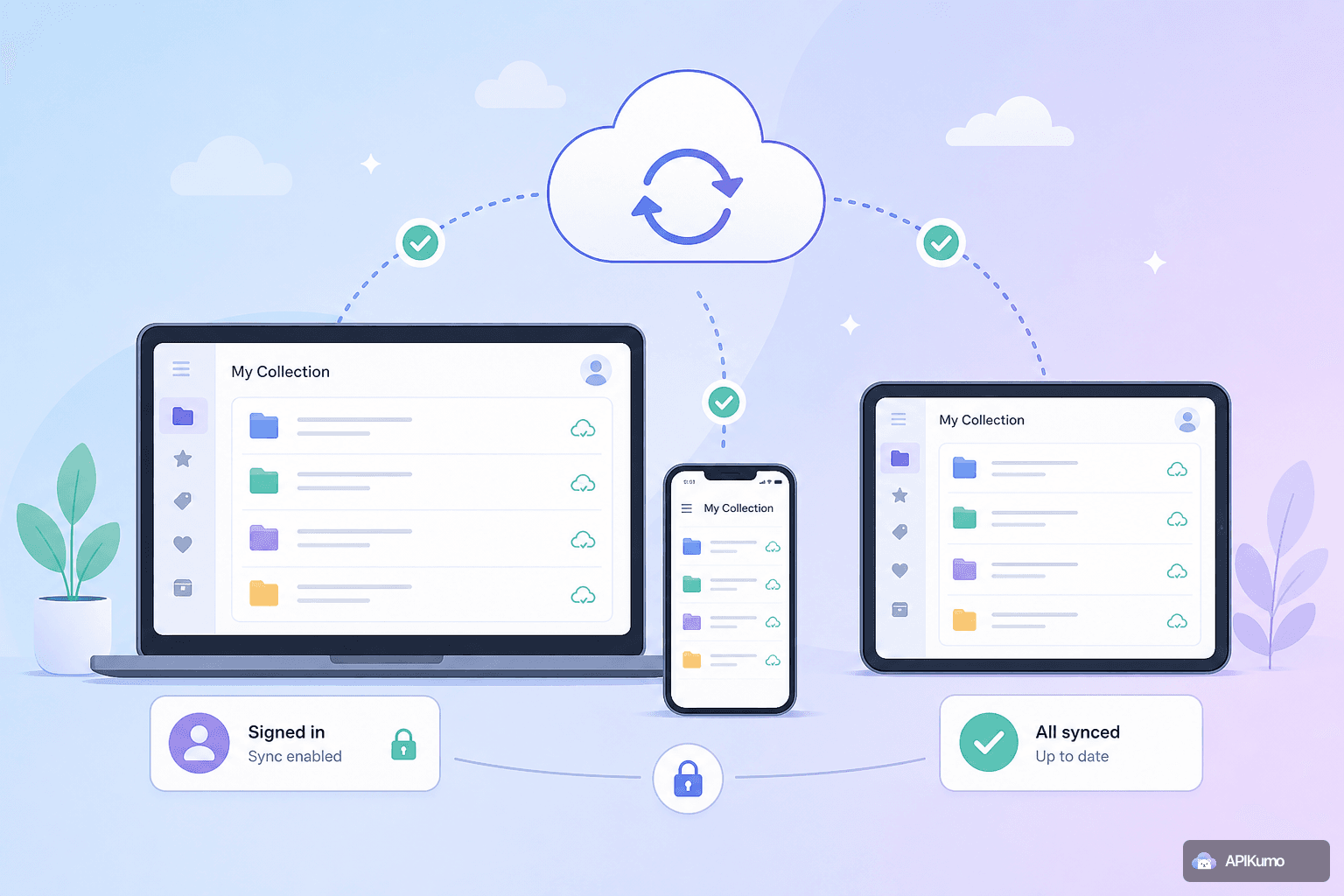
Most developers do not work from a single machine. You might sketch out a new API integration on your work laptop during the day, pick it up on a personal computer in the evening, and occasionally need to demo something from a shared office workstation. Keeping your request collections consistent across all of those contexts — without copying files around or maintaining multiple sources of truth — is exactly the problem apikumo's cloud sync is designed to solve. This post explains how sign-in and sync work, what gets synced, and what the security model looks like for environment variables that hold sensitive values.
How sign-in works
apikumo offers three sign-in options: Google, GitHub, and Discord. All three use standard OAuth 2.0 flows — you authenticate with the provider you already trust, and we receive a token that identifies you without ever seeing your password.
There is no separate apikumo account to create, no card required, and the product is free while it is in preview. Sign in once in your browser and your workspace is ready immediately. Sign in from a second device with the same provider and account, and your workspace appears there too.
What gets synced
Everything you save in your workspace is tied to your identity and synced to the cloud in real time. That includes:
- Collections — nested folders, saved requests with their full configuration (method, URL, query parameters, headers, body, auth settings), and any pre- or post-processors attached to those requests.
- Environments — your Local, Staging, and Production environment definitions, including every
{{variable}}name and its stored value. - Tabs — multi-tab editing state, so re-opening apikumo on another machine picks up roughly where you left off.
- Schemas — structured request and response schema definitions you have built in the schema editor.
- Published docs configuration — your chosen subdomain, visibility mode, and changelog snapshots.
The sync is not a periodic batch job. Changes propagate as you work, which means switching from your work laptop to your home machine mid-afternoon is not meaningfully different from continuing in the same browser tab.
The security model for environment variables
Environment variables are where the most sensitive data lives: API keys, bearer tokens, database passwords, HMAC signing secrets. Getting sync wrong here is not a minor inconvenience — it is a security incident.
apikumo's design makes two guarantees worth understanding:
1. Variables resolve at send-time, not save-time.
When you save a request that references {{API_KEY}}, the literal string {{API_KEY}} is what gets stored and synced — not the resolved value. The substitution happens in memory, in your browser, at the moment you press Send. This means synced request definitions never contain the plaintext secret, even if someone were able to read the raw sync payload.
2. Secrets travel with you, not away from you.
Because the variable values are part of your environment (which is also synced), they are available on every device you own. But they are not embedded in requests, not included in published docs, and not visible in exported collection files unless you explicitly choose an export format that carries environment data.
A concrete example: a pre-processor that computes an HMAC signature looks like this in your workspace:
Pre-processor: HMAC signing
  Secret: {{HMAC_SECRET}}
  Algorithm: SHA-256
  Header: X-Signature
The value stored for HMAC_SECRET lives in your environment, synced securely to your account. The pre-processor definition references the variable name. When you open apikumo on a new laptop, sign in, and send the request, the signing happens locally with the resolved secret — it never appears in a log, a sync event, or a published docs page.
Switching environments across devices
You can maintain separate environment values for Local, Staging, and Production and switch between them with a single click. Because environments sync alongside collections, the same three environments are available on every signed-in device.
A common pattern:
- On your work laptop, keep
BASE_URLset to your local dev server (http://localhost:3000) andAPI_KEYset to a dev key with limited permissions. - On a shared office machine, switch to the Staging environment so requests hit the staging server. The staging
API_KEYis already there because environments sync. - Before a production demo, switch to Production. The production key — stored in the Production environment — resolves at send-time.
At no point do you copy-paste keys into a text file or email yourself environment values. The sync handles it.
Using the Cmd/Ctrl+K palette on any device
One practical benefit of a fully synced workspace is that navigation shortcuts work identically everywhere. Press Cmd+K (Mac) or Ctrl+K (Windows/Linux) to open the command palette and jump to any saved request by name, regardless of which machine you are on. If you added a new request on your laptop this morning, it is reachable by name from the palette on any other device this afternoon — no manual import step required.
What sync does not cover
It is worth being explicit about the boundaries:
- Binary request bodies attached to a specific send session are not persisted between sessions.
- Console panel logs from post-processors are local to the session and are not synced. If you want to preserve extracted values between sessions, capture them into an environment variable using a post-processor extract step — that captured value will sync.
- Unsaved requests — anything in an active tab that you have not explicitly saved to a collection — are session-local. Get into the habit of saving to a collection if you want a request to follow you across devices.
The rule of thumb is simple: if it lives in a collection or an environment, it syncs.
Shared and public machines: what to do before you leave
Working from a shared office computer adds one responsibility: signing out when you are done. Because your entire workspace syncs to whichever browser is signed in, leaving a session open on a shared machine gives the next person access to your collections and environment values.
The sign-out link is in the account menu. We also recommend:
- Using a private/incognito window on any machine you do not personally control, so session cookies do not persist after the window closes.
- Revoking OAuth access from your Google, GitHub, or Discord account settings if you suspect a session was left open somewhere you can no longer physically access.
For especially sensitive production keys, consider keeping a dedicated Production environment with minimal-permission keys that you can rotate quickly — the environment structure makes that straightforward.
Getting started on a new device
The steps to bring a new device into sync are intentionally minimal:
- Open apikumo.com in your browser.
- Click Sign in and choose the same provider (Google, GitHub, or Discord) and account you used originally.
- Your collections, environments, and schemas appear immediately.
No import. No file transfer. No configuration. If you are signing in for the first time ever, you start with a blank workspace and everything you create from that point is synced automatically.
Summary
Cloud sync in apikumo is designed to be invisible when everything is going well and transparent enough to reason about when security matters. Collections and environments follow you across devices the moment you sign in. Environment variable values — including secrets — resolve locally at send-time, so your keys are never baked into synced request definitions or published docs. Sign out on shared machines, keep environment-specific keys scoped appropriately, and let the sync handle the rest.