
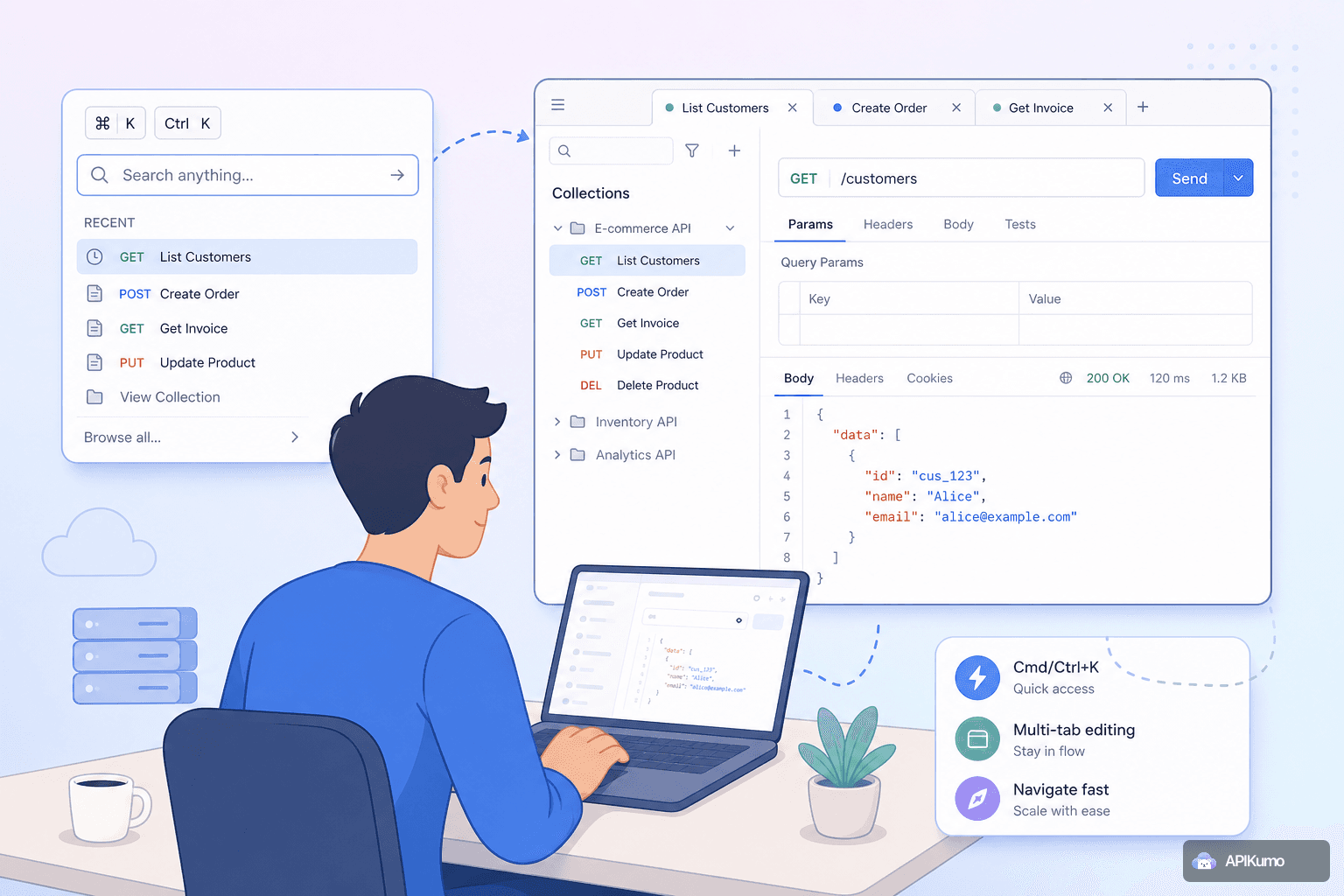
A handful of saved requests is easy to manage. A workspace with dozens of services, nested folders per environment, and hundreds of endpoints across three API versions is a different problem entirely. Scrolling through a sidebar looking for POST /orders/{id}/refund buried three folders deep wastes time you could spend actually building. apikumo's keyboard-first navigation features — the Cmd/Ctrl+K palette, multi-tab editing, and the right-click context menu — exist precisely to close that gap. Here is how to use all three together.
Why Large Collections Get Hard to Navigate
Collections tend to grow in one direction: outward. You add a folder for a new service, a subfolder for each resource, and individual requests inside those. Before long the sidebar is a tree you have to mentally parse before every interaction.
The friction compounds when you are context-switching frequently — jumping from the auth flow to a billing endpoint to a webhook test and back. Every second spent expanding folders and scrolling is a second of broken flow. The goal of a good workspace tool is to make the location of a request irrelevant; you should be able to reach anything by name, immediately.
Jumping to Any Request with Cmd/Ctrl+K
The command palette is the fastest way to open a saved request regardless of where it sits in your folder hierarchy. Press Cmd+K on macOS or Ctrl+K on Windows and Linux, start typing any part of the request name, and the palette filters results in real time.
A few things worth knowing about how the search works:
- Fuzzy matching — you do not need to type the exact name. Typing
refund postwill surfacePOST /orders/{id}/refundeven if those words appear in different parts of the name. - Folder context is included — if you have named your folders clearly (e.g.
Billing > Refunds > POST Refund), any word from the folder path is searchable. - Keyboard-only selection — use the arrow keys to move through results and
Enterto open. Your hands never leave the keyboard.
The practical upshot: naming your requests well pays compound dividends. A request called Create order (sandbox) is much easier to find than Request 47. Spend ten seconds on a good name when you save a request and you will recover that time on the first search.
Opening Multiple Requests Side by Side with Tabs
Once you can jump to any request in under a second, the next constraint becomes comparison. You often need to see two or more requests at once — verifying that a POST and its corresponding GET use the same headers, or checking that a staging request and a production request differ only in their base URL.
apikumo's multi-tab editing lets you open as many requests as you need simultaneously. Each tab is a full editor: method, URL, query parameters, headers, body, auth, and processors are all independently editable without affecting any other tab.
Common patterns for multi-tab use:
- Auth chain + resource request — keep your
POST /auth/tokenopen in Tab 1 and your actual resource calls in Tab 2 onward. Run auth, then switch tabs to run the downstream calls with the captured token already in{{access_token}}. - Staging vs. production comparison — duplicate a request (right-click → Duplicate), switch the environment on the copy to Production, and open both tabs. The
{{base_url}}variable resolves differently in each, so you can compare responses without maintaining two separate collections. - Debugging a chain — when a multi-step workflow breaks, having each step in its own tab lets you re-run individual steps in isolation without losing context.
Tabs persist across sessions because your collections sync across devices. Close the browser, reopen it later, and your tab layout is restored.
Reorganizing Folders with the Right-Click Context Menu
Growing a collection organically means the folder structure you started with rarely matches the mental model you end up with. The right-click context menu on any folder or request gives you the tools to restructure without friction:
- Rename — update a folder name to reflect how you think about it now, not how you named it six months ago.
- Duplicate — create a copy of a request or an entire folder tree. Useful when scaffolding a new service that mirrors an existing one.
- Move — relocate a request or folder deeper or shallower in the hierarchy.
- Delete — remove what you no longer need, with a confirmation step to prevent accidents.
One reorganization pattern that works well at scale: group requests by workflow, not just by resource. Instead of a flat Users folder containing every user endpoint, consider subfolders like Users > Onboarding flow, Users > Admin actions, and Users > Bulk operations. When you open the palette and type onboarding, you get exactly the cluster of requests relevant to that task.
Using Environments to Reduce Request Duplication
A common cause of bloated collections is maintaining separate requests for local, staging, and production. You end up with GET Users (local), GET Users (staging), and GET Users (prod) — three requests to keep in sync for every endpoint.
The better approach is one request with {{variable}} substitution and three environments:
GET {{base_url}}/users/{{user_id}}
Authorization: Bearer {{access_token}}
Your Local, Staging, and Production environments each define base_url, user_id, and access_token with their own values. The one-click environment switcher at the top of the workspace resolves variables at send-time, so the same saved request works against any target without any changes — and, critically, without leaking secrets into the saved request itself.
This keeps your collection lean: fewer requests means the command palette results are less cluttered and folder hierarchies stay shallower.
Environment Variables and the Command Palette Together
Because variables resolve at send-time and not at save-time, the request name in the palette always reflects the canonical name — not GET users (staging) or GET users (prod), just GET users. You switch context with the environment toggle, not by opening a different request. The palette stays clean; your environments carry the configuration weight.
A Keyboard-First Workflow in Practice
Put it all together and a typical debugging session looks like this:
- Cmd/Ctrl+K → type
token→ openPOST /auth/token. - Send the request. A post-processor extracts the bearer token into
{{access_token}}. - Cmd/Ctrl+K → type
invoice list→ openGET /invoicesin a new tab. - Send. The
Authorization: Bearer {{access_token}}header is already populated. - The response looks wrong. Right-click the
Invoicesfolder → Duplicate → rename the copy toInvoices (debug)→ add a query parameter to narrow the result set. - Compare the original tab and the debug tab side by side.
No mouse required until step 5. Even then, the right-click menu is a single gesture rather than a drag-and-drop sequence across a deep sidebar.
Naming Conventions Worth Adopting
Since the command palette is only as good as your request names, a consistent naming convention pays off immediately. A few conventions that work well:
- Lead with the HTTP method when it matters:
POST Create subscription,DELETE Cancel subscription. The method badge is visible, but it is also searchable. - Use parenthetical qualifiers for variants:
GET Orders (paginated),GET Orders (by customer). - Keep folder names short and action-oriented:
Auth,Billing,Webhooks > Inbound,Webhooks > Outbound. - Avoid numbers like
Request 1,Copy of Request 1. They are invisible to fuzzy search in any meaningful way.
Applying this retroactively to a large collection is a one-time cost. The right-click Rename action makes it fast to work through a folder at a time.
Keeping Your Workspace Fast as It Grows
The command palette, multi-tab editing, and the right-click context menu are not independent features — they compound. A well-named collection makes the palette useful. The palette makes multi-tab workflows practical because opening tabs is instantaneous. A clean tab layout makes the right-click context menu's reorganization actions meaningful because you can see at a glance what needs restructuring.
The underlying principle is simple: the physical location of a request in a folder tree should be an organizational hint, not a navigation requirement. With a keyboard-first workflow in place, you can put requests wherever they make structural sense and trust that you will find them instantly when you need them. That is the kind of workspace that scales.